Account & billing
Everything about Web3Map accounts: sign-in methods, the linked wallet, My Page, plan status, and how Pro time is purchased with USDC on Base.
Web3Map works without an account. The moment you open the app, you get an automatic guest session with full read access to public data. An account becomes useful when you want an identity (a nickname on the community board), a second sign-in method (a wallet), or a paid plan. Paid access is sold as time, not as a subscription: you buy a block of Pro time, it counts down, and when it runs out you simply drop back to the Free feature set.
Tiers at a glance
| Tier | How you get it | Description shown in the app |
|---|---|---|
| Guest | Automatic, no account. Issued when you open the app signed out. | Not shown on My Page. Guests who open /mypage are redirected to the login page. |
| Free | Create an account with email or a wallet. | Core graph access for anyone exploring the arbitrage network. |
| Pro | Purchased on Membership Plans with USDC on Base. | Full access to the live arbitrage surface. |
| Max | Not purchasable in the app today. Only Pro time can be bought at checkout. | Maximum premium access for the live arbitrage surface. |
| Admin | Internal operator tier, not available to the public. | Internal operator tier with unrestricted access. |
What an account adds, and what Pro adds
Account (Free)
A nickname that appears on the community board and in the top navigation, the ability to post on the board, access to My Page, and the ability to attach a wallet as a second sign-in method. Guests cannot post and cannot open My Page.
Pro
The premium arbitrage snapshot (refreshes every 30 seconds versus 60 seconds for the public snapshot), editable filters and thresholds, visible contract addresses on DEX legs, and private Telegram alerts. See Arbitrage dashboard and Telegram alerts for what each unlock looks like in practice.
My Page tour
My Page lives at /mypage and is the home for everything in this guide. It requires a signed-in account; guests are redirected to /login.
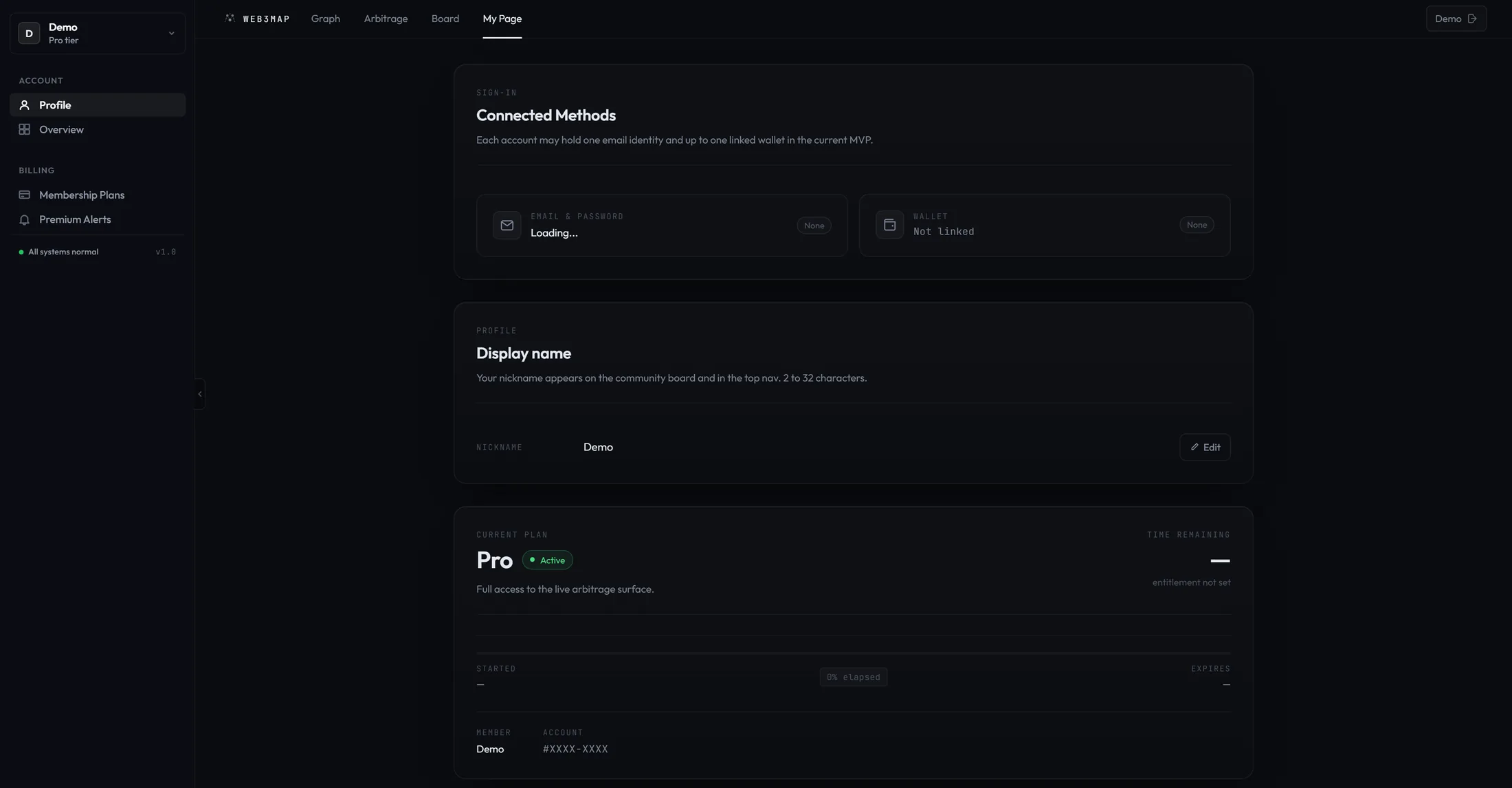
- Top navigation
The brand mark WEB3MAP on the left returns to the Graph view. Four tabs follow: Graph, Arbitrage, Board, and My Page (always highlighted while you are here). On the right, guests see a Login button; signed-in users see their nickname next to a logout icon. If no nickname is set, the label falls back to Member.
- Left sidebar
Headed by an avatar showing the first letter of your nickname (or W if none), your nickname (or Member), and a tier label: Free tier, Pro tier, Max tier, or Admin. Two link groups follow: Account with Profile and Overview, and Billing with Membership Plans and Premium Alerts. Clicking a link smooth-scrolls to that section and updates the URL hash; as you scroll manually, the active link follows your position. The footer shows a green dot with All systems normal and the version v1.0.
- Sidebar collapse toggle
A toggle button (accessible labels Collapse sidebar and Expand sidebar) folds the sidebar down to icons. On mobile the sidebar starts collapsed.
- Section order
The main column always stacks, top to bottom: Connected Methods and Display name (the Profile section), the Current plan card (Overview), Membership Plans, and finally Premium alerts. The page footer reads WEB3MAP with Account · v1.0.
Note: the Premium Alerts sidebar entry and the Premium alerts section only render for Pro, Max, and operator accounts. On a Free account the section is absent entirely, not greyed out. Telegram alert setup is covered on its own page: Telegram alerts.
Tip: your plan state on My Page refreshes itself every 30 seconds. After a purchase or an expiry, the page catches up within about half a minute even if you do nothing.
Signing in
The login page lives at /login. It shows the Web3Map logo with the tagline Cross-chain arbitrage intelligence, an email form with Sign In / Sign Up tabs, an or divider, a wallet button, the line v1.0 · secured access, and at the bottom a ← Continue as guest button. Three sign-in methods exist: email and password, an EVM wallet, and guest mode.
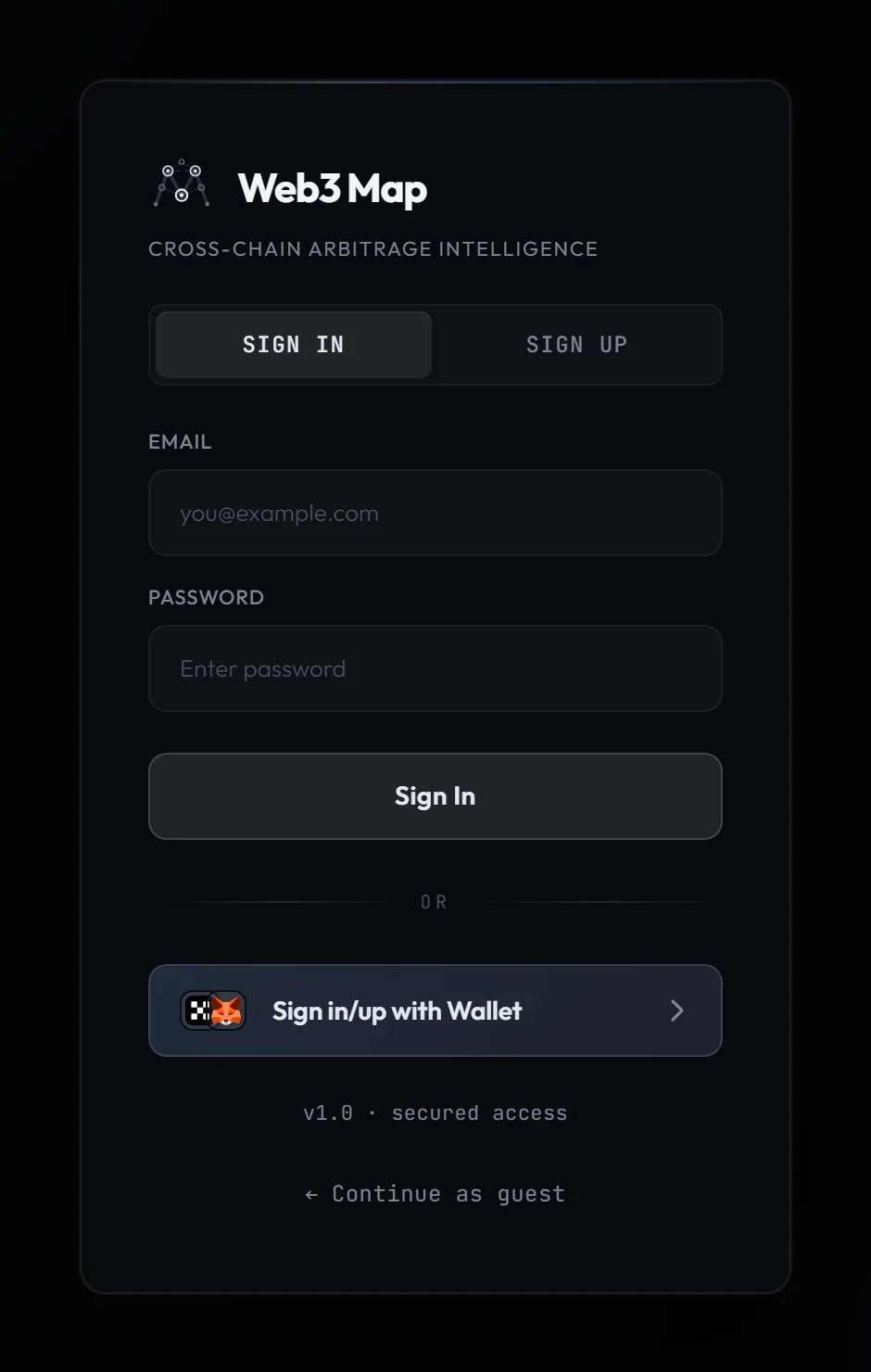
Email and password
- Sign In / Sign Up tabs
Toggle between logging into an existing account and creating a new one. The form fields below change with the tab.
- EMAIL field
Placeholder you@example.com. Your email is your account identifier. There is no email verification step: the address is not confirmed by a link or code, and the account is active immediately after sign-up.
- PASSWORD field
Placeholder Enter password in Sign In mode and Min 4 characters in Sign Up mode. The server enforces a minimum of 4 characters; shorter passwords are rejected at registration.
- NICKNAME field (Sign Up only)
Placeholder How you'll appear in chat. 2 to 32 characters. This is the display name used on the community board and in the top navigation; you can change it later on My Page.
- Submit button
Reads Sign In, Create Account, or Complete Migration depending on mode. While working it shows Signing in..., Creating account..., or Completing migration....
Heads up: there is no self-serve password reset today. If you forget your password there is no recovery form to fall back on, so keep your credentials somewhere safe. A practical safety net is to link a wallet on My Page after signing up: the wallet then works as a second, independent way into the same account.
One-time migration for legacy accounts
Some older accounts need a one-time upgrade the first time they sign in. If yours does, the login attempt does not fail; instead a blue notice appears: This account needs a one-time migration step. Review the password and submit again to complete migration. Check that the password you typed is correct and submit the form again. The button now reads Complete Migration, and after this single extra submit you are signed in normally. The step never repeats.
Wallet sign-in
Below the or divider, the button Sign in/up with Wallet (showing the OKX and MetaMask icons stacked) opens the wallet picker.
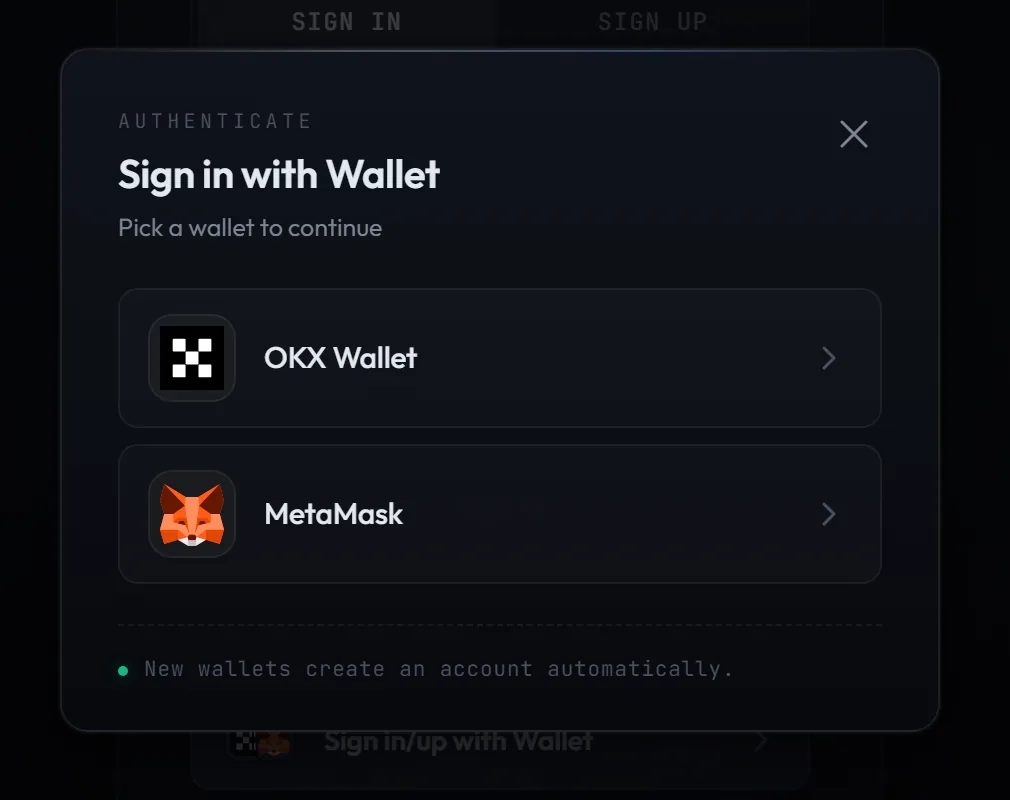
- OKX Wallet
Signs in with the OKX browser extension on its Ethereum (EVM) side. If the extension is not installed or not exposing an EVM provider, you get OKX Wallet (Ethereum) not detected.
- MetaMask
Signs in with the MetaMask extension. If it is not installed, you get MetaMask not detected.
These two wallets are the entire list, and both are EVM wallets. Solana wallets are not supported; the only related message in the product is the error Solana wallets are not available right now.
- Pick a wallet.
The extension asks you to connect an account. Your last-used wallet is remembered for next time.
- Sign a one-time challenge.
The server generates a unique challenge message and your wallet asks you to sign it. This is a plain message signature: it is not a transaction, it moves no funds, and it costs no gas. Signing proves you control the address.
- You are in.
If the address has been seen before, you are signed into that account. The wallet picker footer states the rule for new addresses: New wallets create an account automatically. A brand-new wallet lands in a fresh Free account with no email attached; you can add one later (see Connected methods).
The picker closes with the Close wallet picker button, the Escape key, or a click on the backdrop, but it locks while a signature is in progress so you do not orphan a half-finished login.
Guest mode
Opening the app without an account silently issues a guest session, so you never need to visit the login page just to look around. On the login page itself, ← Continue as guest does the same thing explicitly: it first tries to restore a previous session, and only if none exists does it mint a fresh guest session. Guest sessions renew themselves automatically when they expire. The only places a guest hits a wall are posting on the board and My Page, which redirects guests to /login.
Sign-in error messages
| Message | When it appears | What to do |
|---|---|---|
| Incorrect email or password. | The email and password combination did not match an account. | Re-check both fields. Remember there is no password reset; if you also linked a wallet, sign in with the wallet instead. |
| Too many recent sign-in attempts. Please wait {N} second(s) and try again. | Rate limit after repeated attempts. If the server does not say how long, the message ends with Please wait a moment and try again. | Wait the stated number of seconds, then retry. |
| This account has been disabled. | The account exists but has been deactivated. | This is not a credentials problem; retrying will not help. |
| Login failed: {status} | Generic fallback for any other server response. | Retry; if it persists, the service may be having a temporary issue. |
Connected methods
The first card on My Page is Connected Methods (kicker Sign-in). Its subtitle states the account model exactly: Each account may hold one email identity and up to one linked wallet in the current MVP. In other words, one account can be reached by at most two doors, one email and one wallet, and this card is where both doors are managed.
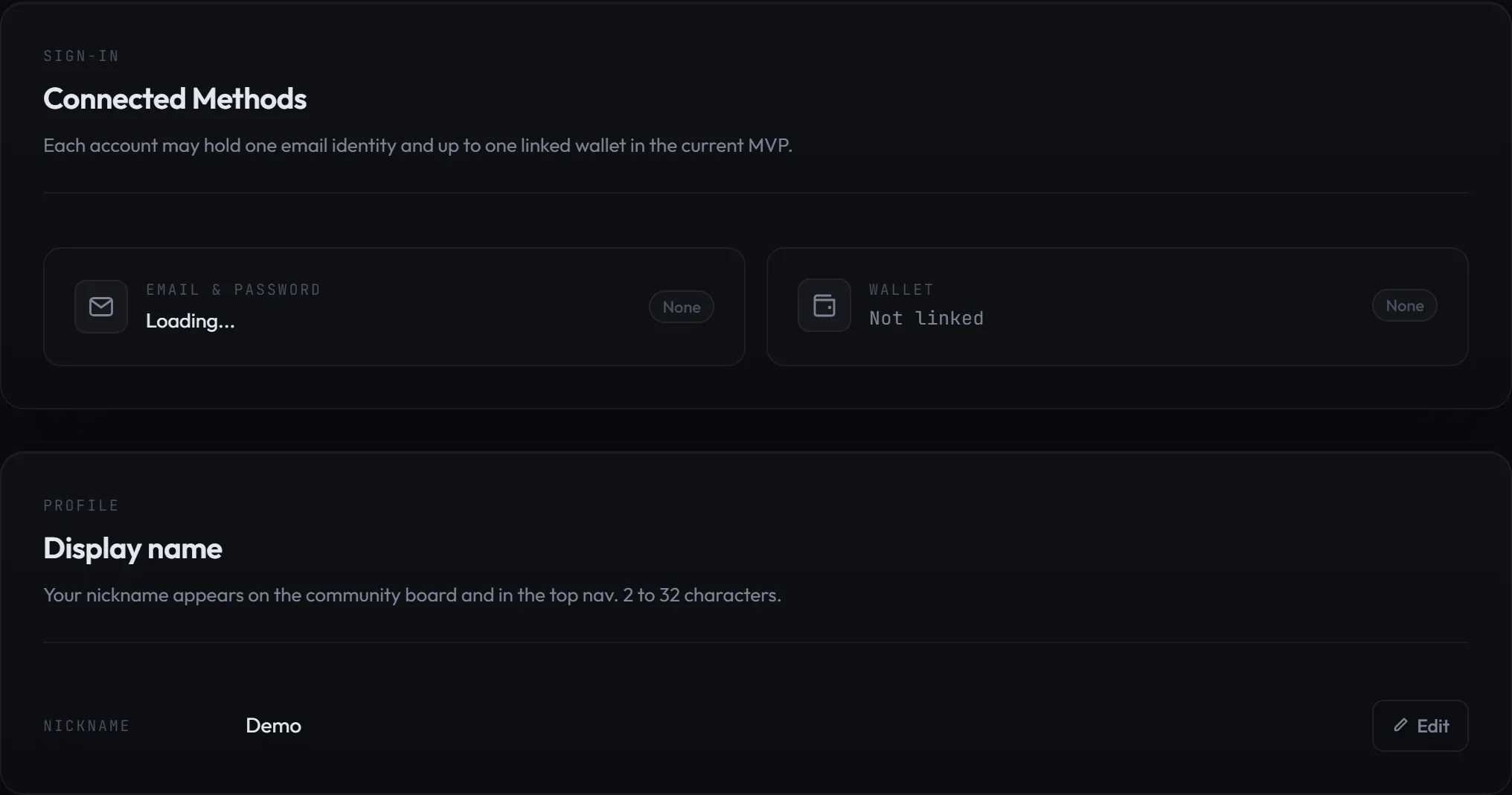
- Email & Password row
Shows your email address when one is attached (or Enabled if the address is unavailable), and Not linked when none is. While the page is fetching it reads Loading.... The chip on the right is Active when attached and None otherwise.
- Attach email & password
Shown only on wallet-first accounts that have no email identity yet. The inline form takes an email (placeholder you@example.com) and a password (placeholder Create a password); the submit button reads Attach email & password and Saving... while busy. On success your session token is refreshed and the card updates. If it fails without a specific reason, the inline error is Failed to add email & password. Attaching an email is the recommended move for wallet-only accounts because it gives you a second sign-in path that does not depend on a browser extension.
- Wallet row
Shows the linked address in shortened form, first 6 characters, an ellipsis, then the last 6 (for example
0x1234…abcdef), or Not linked. The chip is Active or None.- Link a wallet
Available when no wallet is linked yet. Opens the same wallet picker as the login page, in link mode: kicker Account, title Link a Wallet, subtitle Attach a wallet to this account, and the footer rule One wallet per account in MVP. The flow mirrors wallet sign-in: connect the wallet, the server issues a challenge, the wallet signs a plain message (no transaction, no gas), and the link completes. The identity list refreshes automatically afterwards.
- Unlink wallet
Removes the linked wallet from the account. The button reads Unlinking... while busy; the generic failure message is Failed to unlink wallet. After unlinking, the wallet no longer signs you in and the account is reachable by email only, so make sure the email identity exists and you know its password before you unlink.
Hard gate: the linked wallet is also your billing wallet. Pro payments must be signed from this exact address. If your wallet extension has a different account active at checkout, the payment stops with Active wallet does not match the linked billing wallet. and will not proceed until you switch the wallet back to the linked address. Decide deliberately which address you link, because it is both a key to the account and the source of payment.
Display name
Below Connected Methods sits the Display name card (kicker Profile). Its subtitle explains both where the name shows up and the rule: Your nickname appears on the community board and in the top nav. 2 to 32 characters. Because the nickname is your public identity on the board, this is the one profile field worth keeping presentable.
- Nickname row
Shows your current nickname, or a dash placeholder when none is set, next to a pencil Edit button.
- Edit
Switches the row to a text input with a live character counter in the form {n}/32. Validation runs on the trimmed value: it must land between 2 and 32 characters, otherwise the inline error reads Nickname must be between 2 and 32 characters.
- Save / Cancel
Save commits the change (label becomes Saving... while in flight); Cancel discards it. If the server rejects the update without a specific reason, the fallback error is Failed to update nickname. The new name appears immediately in the top navigation and on future board activity.
Current plan
The Overview section is a single hero card with the kicker Current plan. It is the truthful, always-current answer to "what am I on and how long do I have left". Everything on it derives from your live entitlement, which the page re-checks every 30 seconds.

- Tier name and description
The large heading is your tier: Free, Pro, Max, or Admin, with the matching one-line description below it (the exact strings are listed in the tier table above).
- Status badge
One of three: Complimentary on Free (there is nothing to expire), Expired when a paid period has run out, and Active otherwise. Lifetime entitlements never show Expired.
- Time remaining
A countdown on the right side of the card. The format adapts to how much is left, see the table below.
- Progress bar
Fills with the percentage of the current paid period that has elapsed (a lifetime plan shows a full bar). The left label is Started with the period start date in local format, for example Jun 12, 2026, or a dash when there is none. The center shows {n}% elapsed, or Lifetime on lifetime plans. The right label is Expires with the end date; on lifetime plans the label changes to Validity and the date is a dash.
- Member and Account
The card footer shows Member (your nickname) and Account, a short serial in the form
#XXXX-XXXX. The serial is derived from the first 8 characters of your account id, uppercased and split 4-4. It is a convenient stable reference for your account.
Countdown formats
| Remaining time | Big number | Caption below it |
|---|---|---|
| Lifetime access | ∞ | lifetime access |
| Nothing left (or never had a period) | 0 with unit d | no active period |
| 7 days or more | {days} with unit d | {hours}h left today |
| 1 to 7 days | {days}d | {hours}h {minutes}m |
| 1 hour to 1 day | {hours}h | {minutes}m |
| Under 1 hour | {minutes}m | ending soon |
| Entitlement not loaded yet | a dash | entitlement not set |
Membership Plans
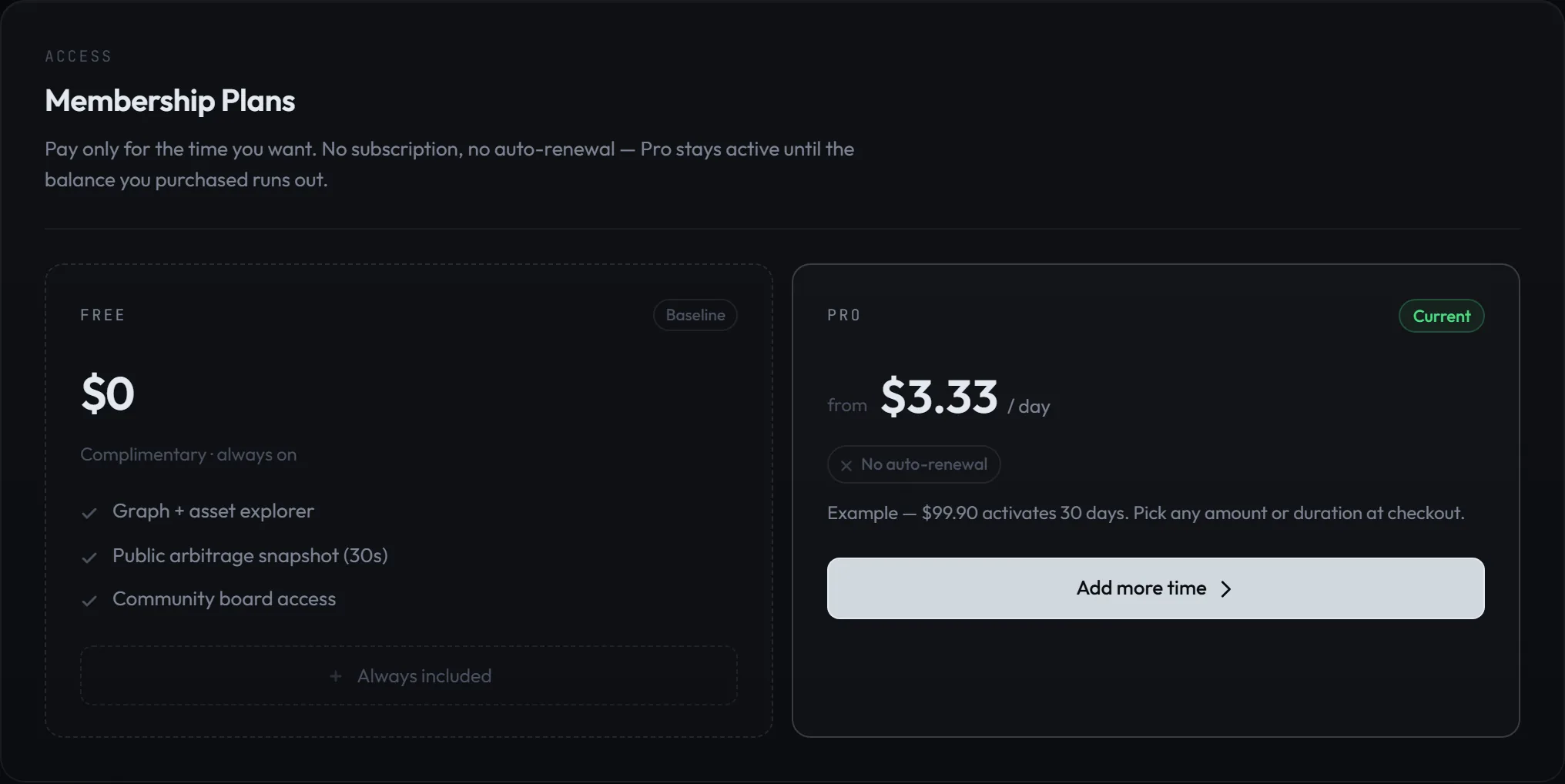
The billing section is headed Membership Plans (kicker Access) and its subtitle states the entire pricing model in one sentence, exactly as the product renders it: Pay only for the time you want. No subscription, no auto-renewal — Pro stays active until the balance you purchased runs out.
That sentence is literal. There is no recurring charge anywhere in the product. You buy a block of Pro time of any size, the block is consumed second by second, and nothing renews. Pricing itself is live: the section loads current numbers from the server when it opens. While loading it shows Loading current Pro pricing..., and if the fetch fails it shows Pricing temporarily unavailable.
Free card
The Free card prices at $0 with the sublabel Complimentary · always on and lists three included features:
- Graph + asset explorer
- Public arbitrage snapshot (30s)
- Community board access
Its corner tag reads Current when you are on Free and Baseline otherwise. The card's button area is informational, never clickable: it reads Current baseline on a Free account and Always included on a paid tier, a reminder that paying never takes the free features away.
Pro card
- Live price chip
Shows from, then a per-day dollar figure, then / day. The per-day figure is the current monthly price divided by 30, computed from live server pricing, which is why this documentation quotes no numbers. When a discount is active, the original per-day price appears struck through next to it, and a discount badge shows the current discount label.
- No auto-renewal chip
A small chip with an X icon. Hovering it shows the tooltip Time you buy never auto-renews. It exists because "no subscription" is the single most important fact about this billing model, and the chip keeps it visible right where you buy.
- Example line
Below the price, a note reading Example followed by the live monthly amount and activates 30 days. Pick any amount or duration at checkout. It anchors what the per-day figure means in a real purchase. If pricing failed to load, this line shows Pricing temporarily unavailable. instead.
- Purchase CTA
The card's button opens the upgrade modal when clickable. Its label depends on your tier and on pricing state, see the table below.
| Button label | When | Clickable |
|---|---|---|
| Start Pro | You are on Free. | Yes, opens the upgrade modal. |
| Add more time | You are already on Pro. Purchases stack on your existing balance. | Yes, opens the upgrade modal. |
| Max access | You are on Max. Only Pro time can be bought at checkout, so there is nothing to purchase. | No. |
| Admin access | Operator accounts. | No. |
| Loading pricing... | Live pricing is still being fetched. | No, wait a moment. |
| Pricing unavailable | The pricing fetch failed. | No, reload the page later. |
Note: the amount of time a payment grants is strictly proportional: your paid dollars are converted to seconds of Pro at the live monthly rate (a full monthly price buys 30 days, half buys 15 days, and so on, down to single seconds). Certain longer durations carry duration discounts, which the checkout shows next to the matching presets. All rates, discounts, and the minimum purchase amount are live policy values, so always trust the numbers in the app over anything written elsewhere.
Upgrading to Pro: the payment walkthrough
Pro is paid with a single one-time USDC transfer on the Base network, using the x402 payment protocol. From your side the entire payment is one typed-data signature from your linked wallet. No subscription is created, nothing is stored that can charge you again, and the modal walks you through every stage with an explicit status line.
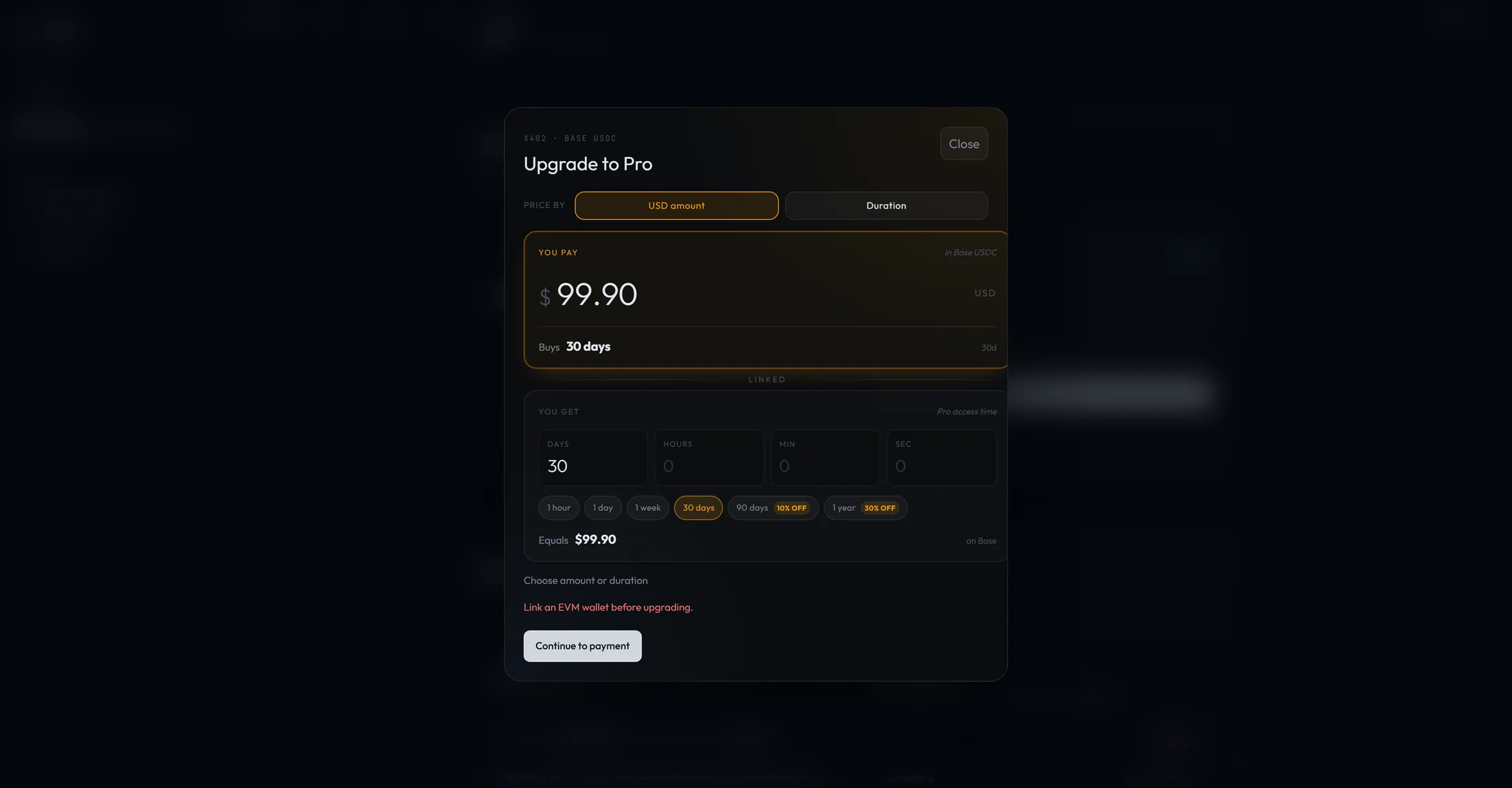
Heads up: a linked EVM wallet is the one prerequisite. If your account has no linked wallet, the modal shows the red message Link an EVM wallet before upgrading. and any payment attempt halts with an error until a wallet is linked. Link a wallet first under Connected Methods. When a wallet is linked, the modal confirms it under the status line as Linked wallet: followed by the shortened address.
Modal anatomy
- Header
Kicker x402 · Base USDC, title Upgrade to Pro, and a Close button. The kicker names the payment rails so you know what your wallet is about to interact with before anything happens.
- Price by toggle
Two modes: USD amount (type how much you want to spend, see how much time it buys) and Duration (type how long you want, see what it costs). The modal opens in USD amount mode prefilled with the current monthly price, and a quote for that amount is created immediately so the summary is populated from the first second.
- You pay card
Hint in Base USDC. A dollar input with a $ prefix and USD suffix. The card footer reads Buys in USD mode (followed by the resulting duration) or Equals in Duration mode. The duration is shown both as a headline and in compact form like
{d}d {h}h {m}m {s}s. A linked connector between the two cards signals that they always describe the same quote from both sides.- You get card
Hint Pro access time, or, when a duration discount applies to your selection, the discount label followed by price. Contains a four-field duration grid labeled Days, Hours, Min, Sec (each placeholder 0), so you can buy down to the second. The footer reads Costs in Duration mode or Equals in USD mode, followed by the dollar amount and on Base (the network label comes from the quote; Base is the default and the production network).
- Duration presets
A chip row with 1 hour, 1 day, 1 week, 30 days, 90 days, and 1 year. Presets whose duration qualifies for a duration discount show the discount label on the chip itself, which is the quickest way to see where the price breaks are. The default duration is 30 days.
- Quote summary rows
Once a quote exists, three numbered rows summarize it. Row 01 Pro access time: the exact duration the quote grants. Row 02 You pay: the precise USDC amount and on Base. Row 03 Quote valid for: a live countdown in the form {m}:{ss} remaining with the note auto-signed on pay. Quotes are valid for 15 minutes. When less than 60 seconds remain, a warning appears: Quote expires in under 60 seconds. Create a fresh quote if you need more time. Once expired: Quote expired. Create a fresh quote before paying. After a successful payment the summary adds a settlement reference line, Settlement: followed by the reference.
- Action buttons
The main button progresses through Continue to payment (no quote or quote invalidated), Pay with linked wallet (quote ready), and Retry settlement (a signed payment is cached and only settlement is pending). It disables during the in-flight stages. Secondary buttons appear contextually: Create fresh quote after expiry, Reset after a recoverable error, and a single Done button once Pro is activated, which closes the modal.
Tip: editing any input, the dollar field, the duration grid, or a preset, immediately invalidates the current quote. That is intentional: a quote is a fixed price for a fixed amount of time, so any change must produce a new one. The button simply returns to Continue to payment.
What actually happens when you pay
- A quote is created.
The server converts your amount or duration into a fixed offer at live pricing. Status: Creating quote... then Quote ready. The 15-minute validity countdown starts.
- The payment is prepared.
Pressing Pay with linked wallet first takes a browser-level duplicate-payment lock (so two tabs cannot pay at once), re-verifies your linked wallet (if you linked it seconds ago the modal may briefly show Checking for the linked wallet. If you just linked it, this can take a few seconds.), and fetches the exact x402 payment requirements. Status: Preparing x402 payment...
- Your wallet connects and switches to Base.
Status: Waiting for wallet connection... If the wallet is on a different network, Web3Map asks it to switch to Base automatically (status Switching wallet to Base...); if Base is not configured in the wallet yet, an add-network prompt appears first. Approve these prompts in the wallet.
- The address is checked.
The active wallet account must be exactly the linked billing wallet. A mismatch halts the flow with status Wallet mismatch and the message Active wallet does not match the linked billing wallet. Switch the active account inside your wallet extension to the linked address and retry.
- You sign once.
Status: Waiting for wallet signature... Your wallet shows a typed-data signature request, not a transaction confirmation. This single signature authorizes the exact USDC amount from the quote, nothing more. It is the only thing you ever sign in this flow.
- Settlement.
The signed payment is submitted and settled on Base. Status: Submitting payment... then Settling payment... If the network is busy, the modal retries automatically with growing pauses (5, 10, 20, then 30 seconds between attempts), showing Retrying settlement... and the note Payment may still be processing. Retrying settlement in {n}s without asking you to sign again. Your signature is reused; you are never asked to sign twice for one payment.
- Your session upgrades.
Status: Applying upgraded session... then Refreshing membership... The page re-reads your entitlement (retrying after 1, 2, and 4 seconds if the first read lags, with the note Payment settled. Refreshing your membership again in {n}s.) and lands on Pro activated. Press Done to close the modal; the Current plan hero now shows your new balance.
Status line vocabulary
The modal always shows exactly one of these stage labels, in roughly this order. If a label has been on screen unusually long, the troubleshooting table below tells you which ones need your action.
| Status label | Meaning |
|---|---|
| Choose amount or duration | Idle. No valid quote yet; set your inputs. |
| Creating quote... | The server is pricing your selection. |
| Quote ready | A fixed offer exists; the 15-minute countdown is running. |
| Preparing x402 payment... | Fetching payment requirements and loading the signing stack. |
| Waiting for wallet connection... | Your wallet extension is being asked to connect. Check for its popup. |
| Switching wallet to Base... | The wallet is being asked to switch networks. Approve the prompt. |
| Wallet mismatch | The active wallet address is not the linked billing wallet. Action required. |
| Waiting for wallet signature... | The typed-data signature request is open in your wallet. Approve or reject it there. |
| Submitting payment... | The signed payment is being sent for settlement. |
| Settling payment... | Settlement on Base is in progress. |
| Retrying settlement... | Settlement hit a temporary error and is being retried without a new signature. |
| Applying upgraded session... | Payment settled; your session token is being upgraded. |
| Refreshing membership... | The page is re-reading your entitlement to reflect the purchase. |
| Pro activated | Done. The Done button closes the modal. |
| Payment needs attention | A recoverable error. Read the message, then use Reset or the suggested retry button. |
| Payment cannot continue | A terminal error for this attempt. Start over with a fresh quote. |
Payment troubleshooting
| Message | Meaning and fix |
|---|---|
| Active wallet does not match the linked billing wallet. | Your wallet extension has a different account selected. Open the extension, switch to the address shown next to Linked wallet: in the modal, then retry. Payments are accepted only from that exact address. |
| Quote expired. Continue to payment to create a fresh quote before paying. | The 15-minute quote lapsed while you were mid-flow. Nothing was charged. Press the button to get a fresh quote at current pricing. |
| Quote expired. Create a fresh quote before paying. | Same situation detected before submission; use Create fresh quote. |
| Another billing payment is already in progress in this browser. Finish or close that payment before starting another. | The duplicate-payment lock. Another tab or window in this browser has an active payment. Finish or close it; the lock also clears by itself after 10 minutes. |
| Payment may still be processing. Retry settlement in a few minutes or refresh the page to check Pro status before starting a new payment. | Automatic settlement retries were exhausted. Important: your payment may still settle. Wait a few minutes, press Retry settlement (it reuses your existing signature), or refresh the page and check the Current plan card before paying again, so you do not pay twice. |
| Payment settled, but membership refresh is delayed. Refresh the page or wait a moment and check your Pro status before starting another payment. | The money side succeeded; only the page's view of your membership is lagging. Refresh the page. Do not start a second payment. |
| Linked wallet is still syncing. Please wait a moment and try again. | You linked the wallet moments ago and the server has not caught up. Wait a few seconds and retry. |
| Linked EVM wallet not available. | The browser could not reach the wallet extension that holds your linked address. Make sure the extension is installed, unlocked, and enabled for this site. |
| Quote amount is below the minimum purchase | Your dollar amount is under the live minimum purchase policy. Raise the amount; the minimum is a server-side value, not a fixed number. |
| Quote amount is too small to grant at least one second | The amount rounds to zero seconds of Pro. Increase it. |
| A linked wallet is required for billing | The account lost its linked wallet between opening the modal and quoting. Link a wallet under Connected Methods. |
| Lifetime entitlements are not billable in v1 | Accounts with lifetime access cannot purchase additional time. |
| Tier changes are not supported in v1 | Checkout sells Pro time only; it cannot convert an account between tiers. |
| Payment failed. You can retry or create a new quote. | Generic failure. Retry, or invalidate the quote by editing an input and start clean. |
Safety: the upgrade flow never asks for your seed phrase or private key, never asks you to send funds to an address manually, and never opens a transaction confirmation, only a connect prompt, an optional network-switch prompt, and one typed-data signature for the exact quoted USDC amount. If you are ever shown anything else, stop and close the modal.
Extending your plan and what happens at expiry
Adding time
While you are on Pro, the Pro card's button reads Add more time and opens the exact same checkout. Any new purchase stacks on top of your current balance: buying 30 days with 10 days left leaves you with 40 days. There is no need to wait for expiry, and there is no penalty for topping up early.
At expiry
When the balance you purchased runs out, the change is automatic and non-destructive:
- The Current plan hero switches its badge to Expired and the countdown shows 0 with no active period.
- Your account behaves as Free: the public snapshot, locked default filters, and masked contract addresses, exactly as described on the Arbitrage dashboard page.
- Telegram delivery stops, because delivery requires an active entitlement. Your bot connection, alert rules, and mute lists are not deleted; they sit untouched and delivery resumes once you add time.
- Nothing else is removed. Your nickname, linked wallet, board posts, and preferences all survive expiry.
Note: because Pro is purchased time rather than a subscription, there is no renewal to cancel and no recurring charge to stop. Purchased time is simply consumed as it elapses. Buy only the window you expect to use; you can always extend later with Add more time.
Two edge cases from the checkout rules are worth knowing: accounts with lifetime access cannot purchase additional time (Lifetime entitlements are not billable in v1), and checkout cannot move an account between tiers (Tier changes are not supported in v1), which is why Max accounts see a disabled Max access button instead of a purchase option.
Sessions and signing out
- Nickname button (top bar)
While signed in, your nickname with the logout icon sits at the right end of the top navigation (its hover tooltip reads Logout ({nickname})). Clicking it signs you out immediately and drops you into a fresh guest session.
- Session lifetime
Signed-in sessions refresh themselves in the background; you are not logged out on a timer during normal use. Guest sessions have no refresh credential, so when one expires the app silently mints a new guest session instead. The practical effect is the same: you are never stranded on a dead session.
Heads up: the nickname button signs you out instantly, with no confirmation dialog. If you only meant to look at your profile, use the My Page tab instead. Signing out replaces your session with a guest session, so anything premium on screen reverts to the public view until you sign back in.
Troubleshooting
A compact map from symptom to fix for everything on this page. Payment-stage messages have their own detailed table in Upgrading to Pro.
| Symptom or message | Cause | Fix |
|---|---|---|
| Incorrect email or password. | Credentials did not match. | Re-check both fields. There is no password reset; if a wallet is linked, sign in with the wallet. |
| Too many recent sign-in attempts. Please wait {N} second(s) and try again. | Sign-in rate limit. | Wait the stated time, then retry. |
| This account has been disabled. | The account was deactivated. | Not a credentials problem; retrying will not help. |
| Sign-in shows a blue migration notice instead of logging in | Legacy account needing its one-time migration step. | Verify the password you typed and submit again; the button reads Complete Migration. One extra submit, then never again. |
| OKX Wallet (Ethereum) not detected. / MetaMask not detected. | The wallet extension is missing, disabled, or not exposing an EVM provider. | Install or enable the extension, then reload the page and retry. |
| Ethereum wallet account not available. | The wallet connected but offered no account. | Unlock the wallet and make sure an account is selected and the site is allowed to connect. |
| Solana wallets are not available right now. | Only EVM wallets (OKX Wallet, MetaMask) are supported. | Use one of the two supported EVM wallets. |
| Wallet authentication failed | Generic wallet sign-in failure, often a rejected signature. | Retry and approve the signature request in the wallet. |
| Nickname must be between 2 and 32 characters. | The trimmed nickname is too short or too long. | Pick a name within 2 to 32 characters. |
| Payment seems stuck on Settling payment... or Retrying settlement... | Network congestion during settlement. | Leave the modal open; retries are automatic and reuse your signature. If retries run out, follow the exhaustion message: wait, press Retry settlement, or refresh and check your plan before paying again. |
| Payment halted on Wallet mismatch | The wallet's active account differs from the linked billing wallet. | Switch the active account in the wallet extension to the address shown next to Linked wallet:, then retry. |
| Pricing temporarily unavailable. | The live pricing fetch failed, so the Pro card cannot quote a price and its button shows Pricing unavailable. | Reload the page or come back later. This is a display issue, not an account issue. |
| My Page keeps redirecting to the login page | You are on a guest session; My Page requires an account. | Sign in or create an account, then reopen /mypage. |
| Plan badge still wrong right after a purchase or expiry | The entitlement view refreshes on a 30-second cycle. | Wait up to 30 seconds or reload the page. |